> ## Documentation Index
> Fetch the complete documentation index at: https://arivu.mintlify.site/llms.txt
> Use this file to discover all available pages before exploring further.
# App Integrations
> Connect external platforms for notifications and automated reporting.
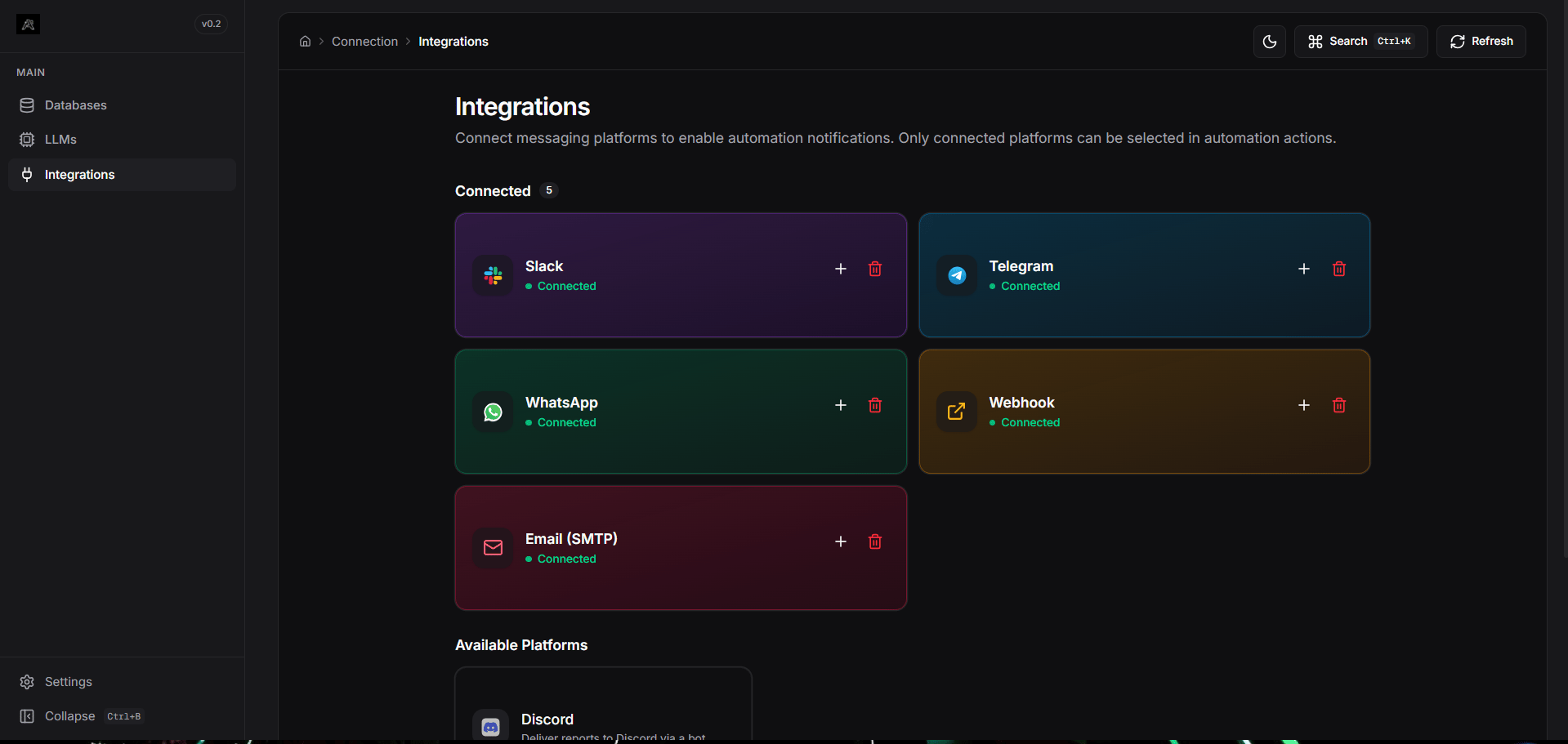
Integrations allow you to connect Arivu to your external platforms, such as messaging apps or custom webhooks. By connecting these platforms centrally in the **Connections** section, you can later attach them to **Automations** within your individual database workspaces.
 ## Supported Platforms
Deliver automation reports via a custom Telegram bot to groups or individuals.
Send reports to WhatsApp numbers using the Twilio API integration.
Post query results directly to specific Slack channels using a bot token.
Send messages to Discord channels via a server bot.
POST query results as JSON to any HTTP endpoint (e.g., Zapier, n8n, custom APIs).
Use your configured SMTP server to send scheduled HTML email reports.
## Configuration Flow
1. **Global Configuration:** Navigate to **Connections -> Integrations** on the Arivu Dashboard.
2. **Connect a Platform:** Click on the platform you want to connect (e.g., Slack). Follow the inline Setup Guide to get your Bot Tokens, Webhook URLs, or Twilio SIDs.
3. **Store Securely:** Provide the credentials. These are securely stored locally within your Arivu instance.
4. **Attach to Automations:** Once connected, the platform becomes "Active" and can be selected as an action target when creating Scheduled Automations inside your database workspace.
## Supported Platforms
Deliver automation reports via a custom Telegram bot to groups or individuals.
Send reports to WhatsApp numbers using the Twilio API integration.
Post query results directly to specific Slack channels using a bot token.
Send messages to Discord channels via a server bot.
POST query results as JSON to any HTTP endpoint (e.g., Zapier, n8n, custom APIs).
Use your configured SMTP server to send scheduled HTML email reports.
## Configuration Flow
1. **Global Configuration:** Navigate to **Connections -> Integrations** on the Arivu Dashboard.
2. **Connect a Platform:** Click on the platform you want to connect (e.g., Slack). Follow the inline Setup Guide to get your Bot Tokens, Webhook URLs, or Twilio SIDs.
3. **Store Securely:** Provide the credentials. These are securely stored locally within your Arivu instance.
4. **Attach to Automations:** Once connected, the platform becomes "Active" and can be selected as an action target when creating Scheduled Automations inside your database workspace.