

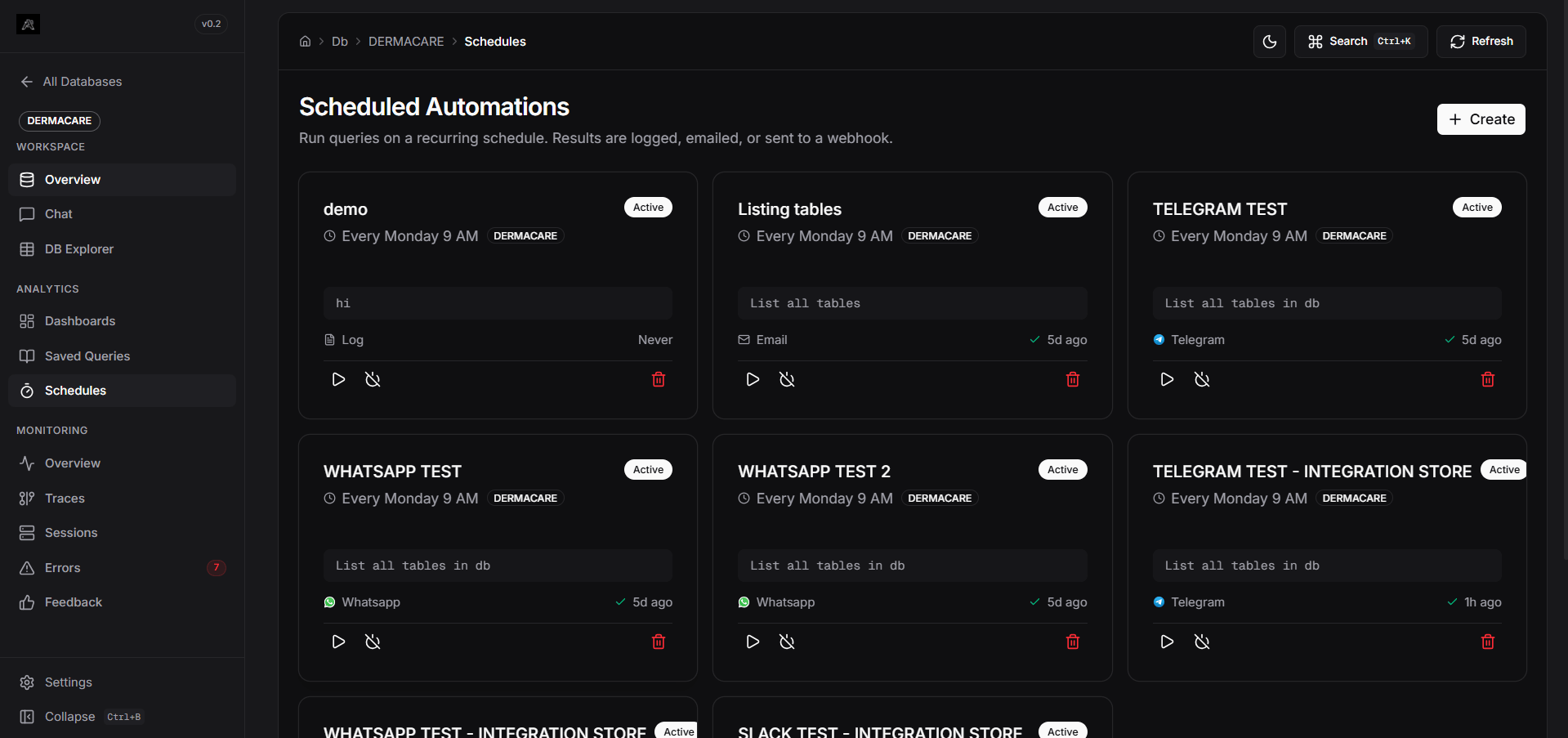
Overview
Scheduled Automations allow you to run natural language queries automatically at specified intervals, with results delivered to your configured action endpoints. Perfect for generating recurring reports, monitoring dashboards, and automated data workflows.Key Features
Cron-Based Scheduling
Flexible scheduling with standard cron expressions for precise timing.
Natural Language Queries
Convert natural language into automated SQL execution via the pipeline.
Multiple Actions
Route results to logs, email, or webhooks automatically.
Execution History
Track all automation runs with timestamps, status, and error logs.
Live Monitoring
Real-time logs and run history for each automation.
Enable/Disable Toggle
Pause automations without deleting them.
Creating an Automation
Automations rely on Integrations to deliver reports.1
Configure Integrations (Optional)
If you haven’t already, navigate to Connections -> Integrations on the global dashboard home page. Connect your desired platforms (e.g., Slack, Telegram, Webhooks). For email, ensure your SMTP settings are configured in Settings.
2
Navigate to a Database Workspace
Automations are scoped to individual databases. Select a database connection from the sidebar to enter its workspace.
3
Go to Automations & Click Create
Inside the database workspace, click Automations in the sidebar, then click the Create button in the top right corner.
4
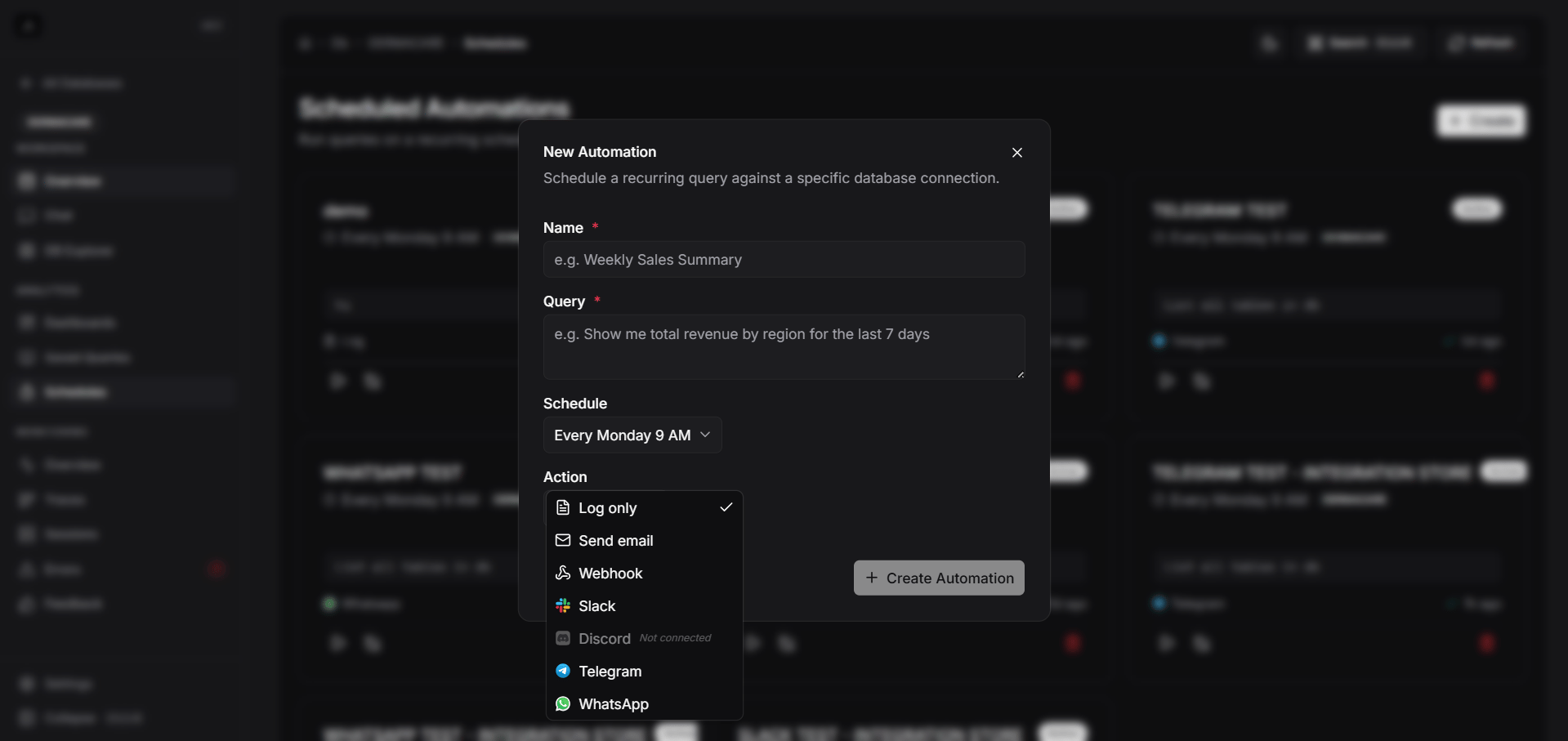
Enter Details
- Name: A descriptive name for your automation (e.g., “Daily Sales Report”)
- Query: Natural language description of what to query (e.g., “Show me total sales by region for the last 7 days”)
5
Set Schedule
Select a preset schedule or enter a custom cron expression:
- Every hour:
0 * * * * - Daily at 9 AM:
0 9 * * * - Every Monday at 9 AM:
0 9 * * 1 - Custom: Enter 5-part cron format
6
Choose Action (Integration)
Select where results are delivered:
- Log: Stored in automation history
- Active Integrations: Any platform you connected in step 1 (e.g., Slack, Telegram, Webhook) will appear here. Attach it to your automation.
7
Save
Click Create to save and activate the automation.
Managing Automations
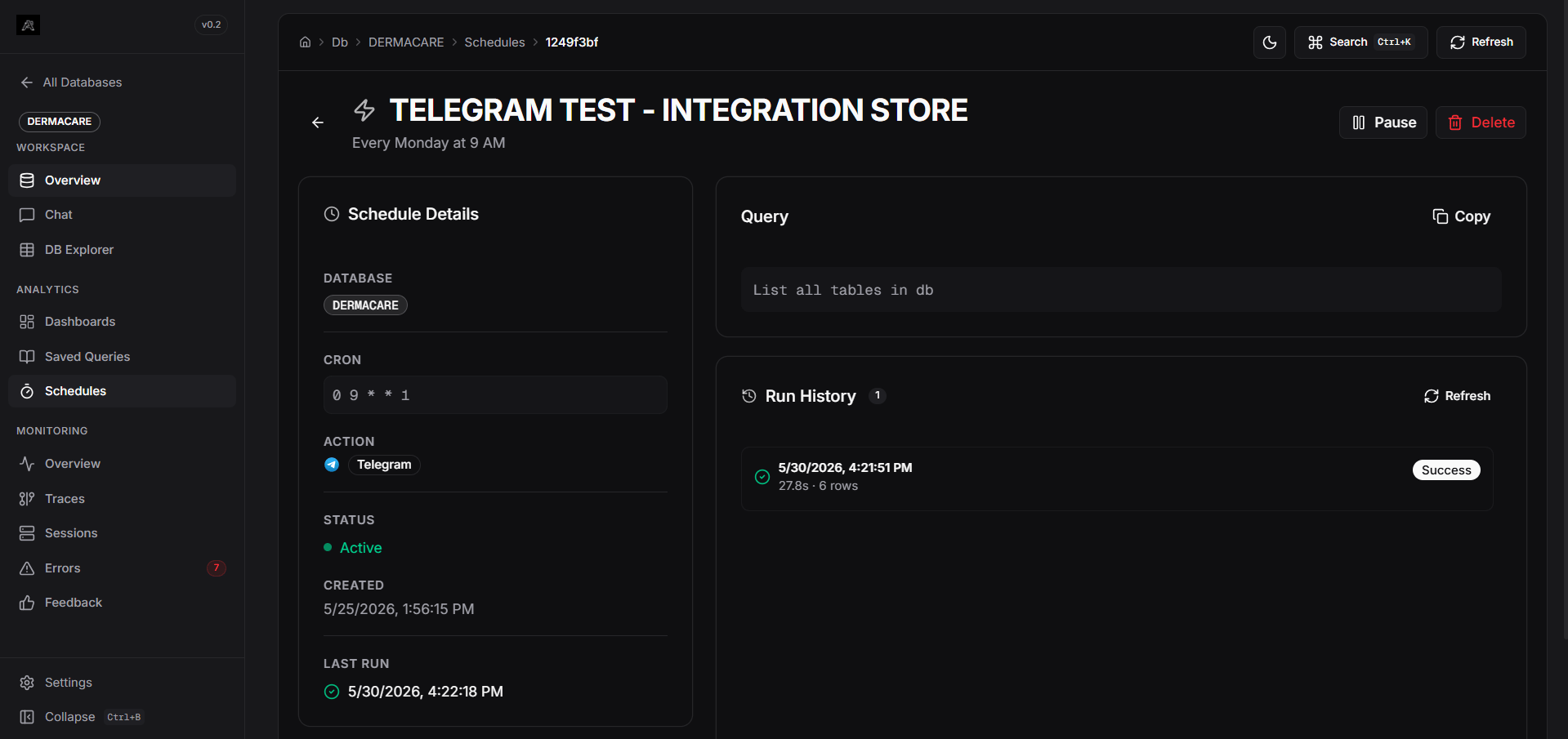
View Automation Details
Click on any automation card to open its detail page with:- Schedule Details: Cron expression, action type, status
- Run History: Timestamps, duration, status for each execution
- Live Logs: Real-time execution logs when you click “Run Now”
Run Now
Manually trigger an automation immediately:- Open the automation detail page
- Click the Play button (▶) at the top
- Watch live logs stream in real-time
- Results appear in Run History
Pause/Resume
Toggle an automation on/off without deleting:- Click the Pause (⏸) or Play (▶) button on the card
- Automation will stop running on schedule until resumed
Edit or Delete
- Edit: (Coming soon) Modify automation schedule, query, or action
- Delete: Click the trash icon to permanently remove (no undo)
Action Types
Log
Results stored in automation history visible in the dashboard. Best for monitoring and analysis.
Messaging Integrations
Results formatted and sent directly to your connected Telegram, WhatsApp, Slack, or Discord accounts.
Webhooks & Email
Send results to a custom POST endpoint or as an HTML email to configured recipients.
Scheduling Guide
Common Cron Patterns
Cron format:
minute hour day month day-of-week. See crontab.guru for an interactive editor.Error Handling
Automations include built-in error management:- Failed Query Execution: Logged with error message, automation continues on next schedule
- Email Delivery Failure: Retried automatically, visible in logs
- Webhook Timeout: Logged and retried based on configuration
- Data Processing Error: Full stack trace captured in Run History
Best Practices
Name Clearly
Use descriptive names that indicate the automation’s purpose and frequency.
Test Before Scheduling
Use “Run Now” to test queries before setting up recurring execution.
Monitor Results
Check Run History regularly to ensure automations are executing as expected.
Avoid Peak Hours
Schedule resource-intensive queries during off-peak times.
Document Queries
Use clear, specific natural language in query descriptions for future reference.
Backup Results
For critical automations, export results regularly as backup.
Limitations
- Maximum 100 concurrent automations per instance
- Queries must complete within 5 minutes
- Email actions require SMTP configuration
- Webhooks have 30-second timeout
- Run history retained for 90 days
Troubleshooting
Automation Not Running
1
Check Status
Ensure the automation shows the green “Active” badge.
2
Verify Schedule
Confirm the cron expression matches your intended frequency.
3
Check Database Connection
Verify the active connection is still valid in your session.
4
Review Logs
Open the automation detail page and check Run History for error messages.
Query Execution Failed
1
Test Manually
Use “Run Now” to see the exact error in live logs.
2
Refine Query
If the natural language query is ambiguous, be more specific.
3
Validate Data
Ensure required tables and columns exist in your database.
Email Not Received
1
Configure SMTP
Go to Settings → Email Configuration and test your SMTP settings.
2
Check Logs
Look for “Email delivery failed” messages in Run History.
3
Verify Recipients
Confirm the email address is correctly configured.